QuickTools
QuickTools is a customizable toolbar that provides quick access to commonly used keys and symbols, especially useful on touch devices without a physical keyboard.
Overview
QuickTools contains useful symbols and keys that are frequently needed while coding but can be tedious to access on a mobile keyboard, such as:
- Brackets:
( ) [ ] { } < > - Symbols:
; : " ' = + - - Special keys:
Tab,Ctrl,Esc - Navigation: Arrow keys
Layout
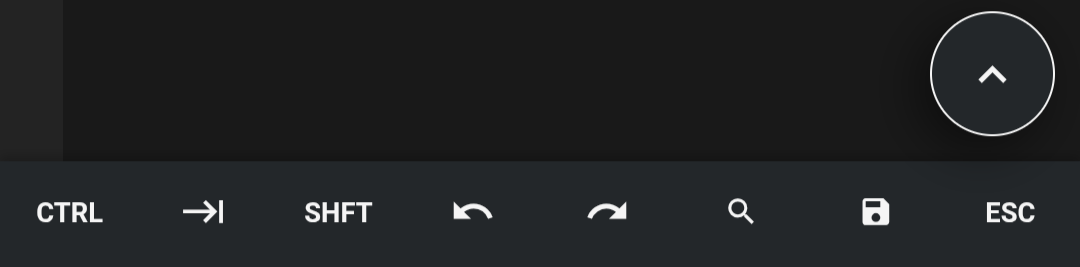
QuickTools uses a two-row layout:
| Row | Description |
|---|---|
| Row 1 | Primary keys and symbols |
| Row 2 | Secondary/additional keys |
Swipe Gesture
Each row supports a swipe gesture to reveal hidden keys:
- Swipe left or right on a row to show additional keys that don't fit on screen
- The visible keys shift, revealing the hidden set
Visibility Controls
Toggler Button
A floating toggler button allows you to control QuickTools visibility:
- Tap once: Toggle between showing one row or both rows
- Tap and hold (or double-tap): Hide QuickTools entirely
Settings
You can configure QuickTools behavior in Settings → App Settings:
| Setting | Description |
|---|---|
| QuickTools | Enable or disable QuickTools |
| Floating Button | Show or hide the toggler button |
| Trigger Mode | Touch or Click (use Click for external mouse) |
Customization
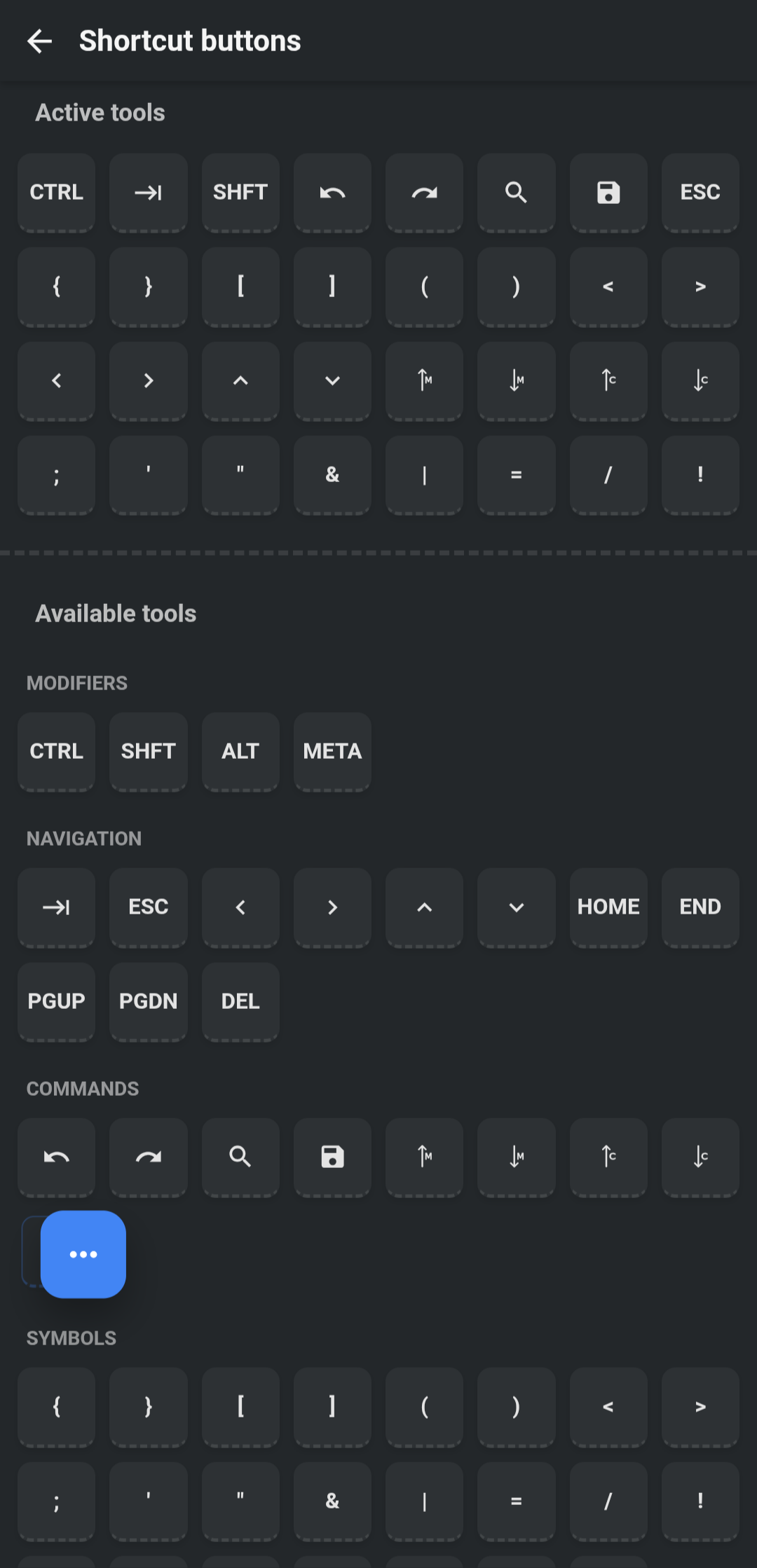
You can customize which keys appear in QuickTools:
- Go to Settings → App Settings
- Tap Shortcut Buttons
- Drag and drop keys to reorder or add/remove them